
How to Run a Pointing Session in Async Pointing Poker
A complete walkthrough for Scrum Masters: setting up a session, choosing how QA estimates, adding your team, what “?” and “NA” do, how tickets settle on their own, and how to run the review.
Published October 12, 2026
Before you start
- Sign in with JIRA. It is the only way in, and it is what lets the app read your tickets and teammates. The app only reads from JIRA — it never changes anything there.
- Whoever creates a session is its Scrum Master. Only the Scrum Master can change tickets, people and settings, and only they see every estimate. The role can be handed to someone else later.
- Set your defaults once. In Preferences you can save the settings every new session starts with, which tab ticket entry opens on, and a list of favorites — teammates you always want offered first, even if JIRA doesn’t list them.
Create a session
From your dashboard, choose New Pointing Poker. Nothing is saved until you move on to choosing people, so you can experiment freely.
1. Name it and check the settings
Open the Settings panel to adjust, for this session only:
- Role types — the groups that estimate, such as Frontend, Backend, Salesforce or Data. Use whatever matches how your team divides work. QA is handled separately (see below).
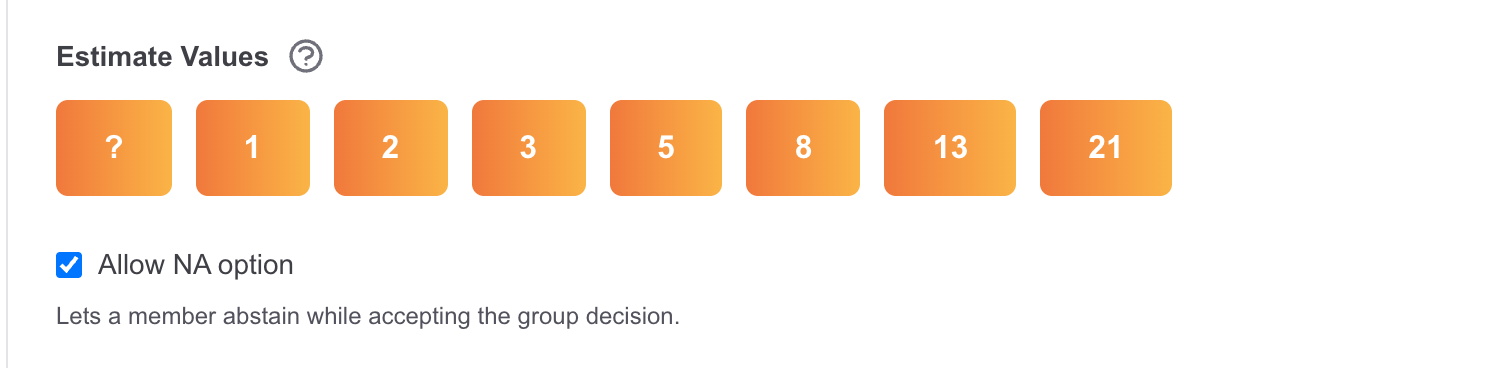
- Estimate values — which of ?, 1, 2, 3, 5, 8, 13 and 21 your team uses.
- Allow NA option — whether people can answer “NA” for work that isn’t theirs to size.
- QA configuration — covered in its own section next.
2. Add tickets and tag them
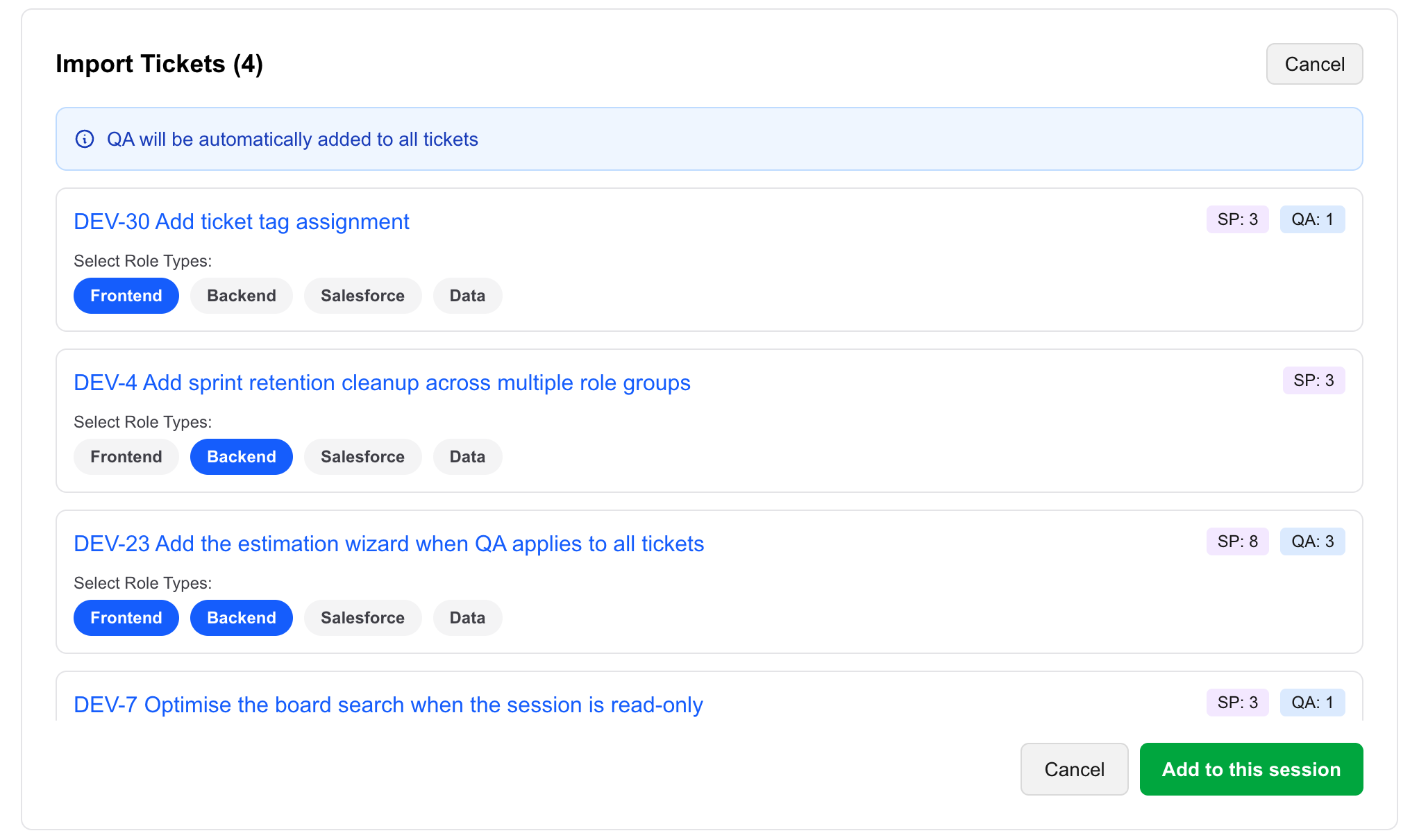
Paste a list of JIRA links or keys, or switch to Browse JIRA to pick tickets from a board or sprint. Then tag each ticket with the roles that should size it — a pure backend change needs only Backend, a full-stack story might need both Frontend and Backend.
Choosing your QA setup
Two settings decide how QA takes part. They answer different questions.
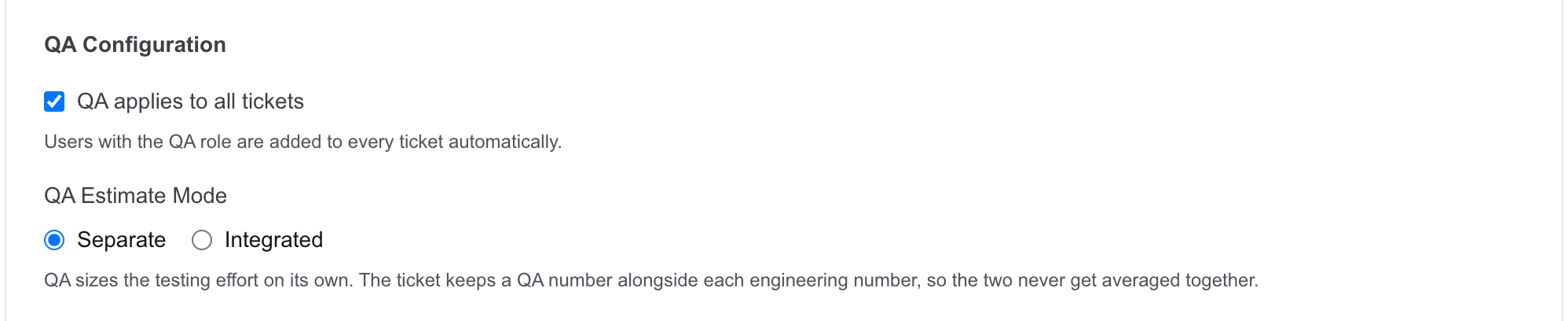
“QA applies to all tickets” — which tickets QA sizes
- On (the default): everyone with the QA role estimates every ticket. You don’t need to tag tickets with QA.
- Off: QA is a normal tag. QA members only see and estimate tickets you tag with QA — useful when only some work needs dedicated testing.
“QA estimate mode” — what the numbers mean
- Separate (the default): QA sizes the testing effort only, and each engineering role sizes its own part. Every role agrees among itself, and the ticket ends up with a number per role — for example Frontend 5, Backend 3, QA 2.
- Integrated: QA’s effort is folded into the estimate. Everyone tagged on the ticket — engineers and QA alike — sizes the whole ticket, building and testing included, so QA gets a voice on the total. Everyone has to land on one number for the ticket.
Here is the same ticket under each mode, with QA applying to all tickets:
| Votes | Separate | Integrated |
|---|---|---|
| Frontend 5, 5 · Backend 3, 3 · QA 2 | Accepted: Frontend 5, Backend 3, QA 2 | Review: the votes don’t all match |
| Frontend 5, 5 · Backend 5, 5 · QA 5 | Accepted: Frontend 5, Backend 5, QA 5 | Accepted: 5 for the whole ticket |
| Frontend 5, 8 · Backend 3, 3 · QA 2 | Review: Frontend disagrees | Review: the votes don’t all match |
Which to choose? Use separate when you plan or report testing work on its own, or when engineering and QA effort are very different. Use integrated when your team thinks of a ticket’s size as one number covering everything needed to ship it. Decide before anyone starts estimating.
Add people and roles
Choosing Next: choose people creates the session and opens the people step. You can add people three ways:
- From JIRA — everyone who works in the projects your tickets belong to, plus anyone assigned to or reporting their recent issues.
- From your favorites — shown first, straight away, without waiting for JIRA. Star anyone (☆) to add them; manage the list from the people step or Preferences.
- By email — for anyone else, with an option to save them for next time.
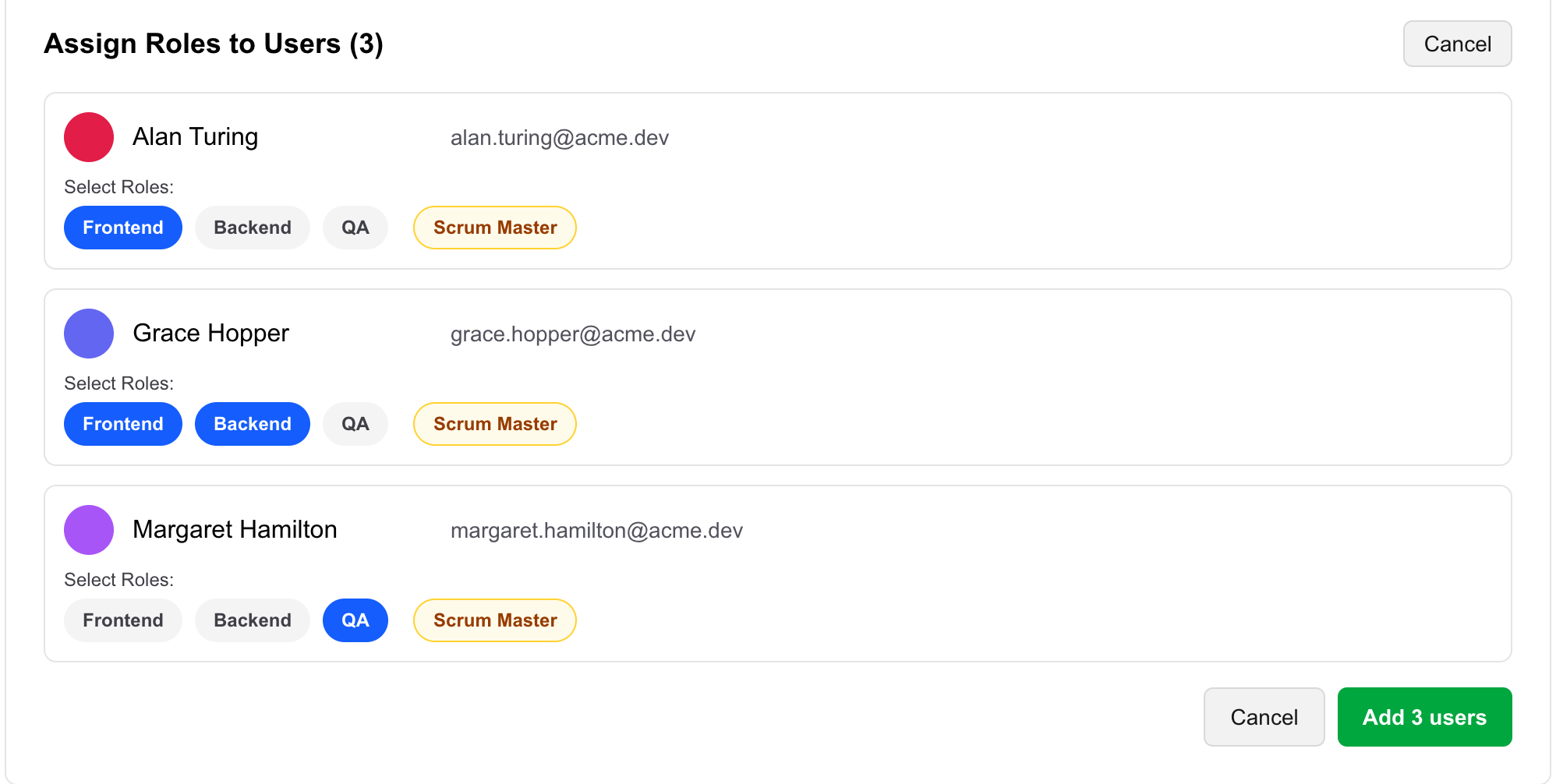
Large JIRA sites can list hundreds of people, so type part of a name or email in the filter box to narrow the list (“jsmi” finds jsmith1@…). Select people, choose Assign roles, and give each person one or more roles. Someone can hold several — a full-stack developer can be both Frontend and Backend, and will be asked for an estimate for each.
Start estimating and share
Choose Start estimating when the team is ready. Then use the share button on the session page to email everyone the link, or copy the link and the list of people to post in your team’s channel. Members sign in with JIRA and see the session on their own dashboard.
The app doesn’t set a deadline, so put one in your message — “estimates by Wednesday at noon”. For more on timing and team habits, see How to Run Sprint Planning Asynchronously.
What “?” and “NA” mean
Each person sees only the tickets tagged for their roles, and only their own answers — never anyone else’s. Alongside the numbers they have two special answers:
| Answer | Means | Effect |
|---|---|---|
| ? | “I can’t estimate this yet” - unclear, too big, or missing information. | The ticket can’t settle on its own; it goes to review for discussion. |
| NA | “This isn’t mine to size”, while accepting what the others decide. Only shown when NA is allowed. | Set aside: the others’ answers decide. If everyone answers NA, the ticket goes to review. |
For example, within one role:
- 5, 5, NA → settles on 5.
- 5, 5, ? → review — someone has a question.
- NA, NA → review — nobody sized it.
Encourage “?” rather than a guess. It is the clearest signal you’ll get that a ticket needs a conversation, a split, or more detail.
How tickets settle
A ticket is checked every time someone answers:
- Pending until everyone who needs to estimate it has answered.
- Accepted automatically when the answers agree — per role in separate mode, or as one number in integrated mode. Nobody needs to discuss it.
- Review when they don’t agree, or someone answered “?”.
Tickets accept as soon as they settle, without waiting for the rest. When no ticket is still pending, the session moves to review and you get an email saying it’s ready. Team members’ cards on the session page show a check mark once they’ve answered everything, so you can see who to nudge.
Run the review
Your session page now lists Tickets Needing Discussion — only the tickets that didn’t settle — with everyone’s answers. That list is your agenda: talk them through with the people involved, in a short call or a thread.
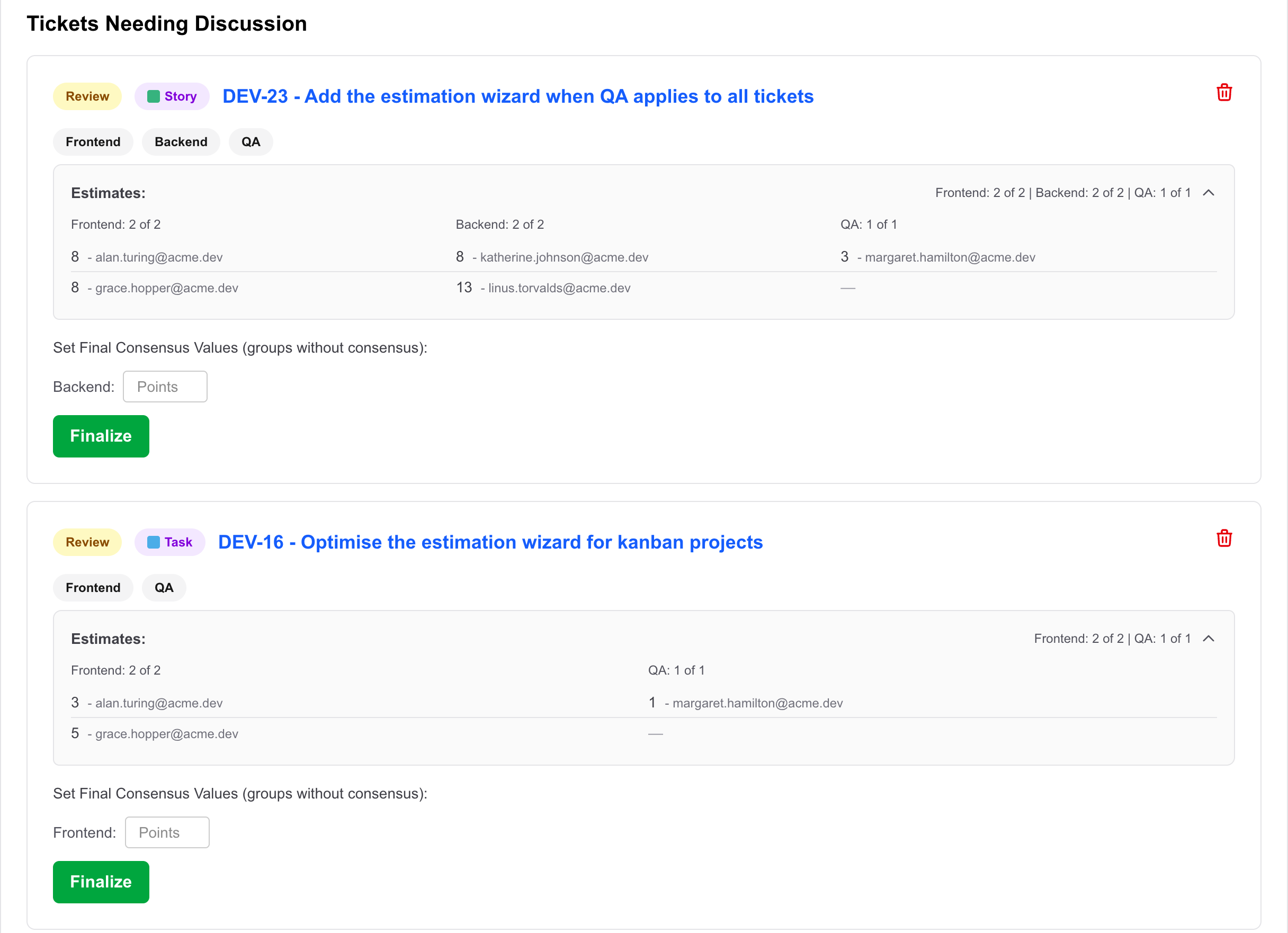
- Separate mode: set a final number for each role that didn’t agree; roles that did agree keep their number.
- Integrated mode: set one number for the whole ticket.
Choose Finalize and the ticket moves to Finalized Tickets. If the discussion shows a ticket should be split or dropped, delete it here and add the new tickets instead.
Managing a running session
Everything stays editable from the session page while people are estimating:
- Edit people — add or remove members.
- Add ticket — add work you forgot.
- Settings — adjust role types, values and QA configuration. A role type can’t be removed while tickets or people still use it.
- Copy session — start next sprint’s session with the same settings and people, and no tickets.
- Hand off the Scrum Master role — on the people step, choose the Scrum Master pill for someone (or Make Scrum Master on an existing member). You’ll be asked to confirm, and whether to stay on as an estimator; after that, only they can edit the session.
After the session
- Record the results in JIRA. The app doesn’t write back, so copy each ticket’s final points across.
- Mind the retention period. Sessions are deleted automatically after a short period, which your dashboard shows for each one.
- Look at the review list over time. If the same kind of ticket keeps ending up there, that usually points to unclear acceptance criteria or stories that are too big.
New to points? Read How Story Points and the Fibonacci Scale Work. Ready to start? Create your first session.
FAQ
Can someone change their estimate after voting?
Yes, while the session is still estimating: they pick a different value and the ticket is re-checked straight away. That is how a "?" gets resolved after a quick conversation. Once every ticket has settled or gone to review, the session moves to review and the Scrum Master sets any remaining numbers.
Do I have to estimate as well?
Only if you want to. The Scrum Master runs the session and sees every ticket and every estimate. If you also want to estimate, add yourself as a member with the roles you size.
Can I switch between separate and integrated QA mid-session?
You can change it in the session settings, but it changes what the numbers mean. In separate mode QA sizes only the testing; in integrated mode everyone sizes the whole ticket. Estimates already given were made under the old rules, so it is best to choose before anyone estimates.
Does Async Pointing Poker update story points in JIRA?
No. It reads tickets and people from JIRA but never writes to it. Copy the final values into JIRA when the review is done.
What happens to research spikes?
Tickets whose JIRA issue type is a spike or research spike are not estimated. They are marked as settled as soon as they are added, and they never stop the session from reaching review.
Someone from the JIRA project is missing from the people list. Why?
Atlassian lets people hide their email address, and the app needs one to invite someone. People who hide it are listed separately under the people grid, where you can type their email in once; it is remembered in your browser. You can also add anyone by email, or star them as a favorite so they are always offered first.